Ledger Summary Report
The Ledger Details report allows users to view details of the transactions performed in each ledger.
Perform the following steps to generate the report:
Navigate to Reports ➜ Dynamic Reports ➜ Accounting ➜ Ledger Summary report.
Refer to the following table and fill in the fields.
|
Field |
Description |
|---|---|
|
Report Name |
Ledger Summary. |
|
Property |
This is a mandatory multi-select drop-own list that allows users to select the properties for report generation. The current property is displayed by default. |
|
Start Date |
The start date for report generation. This is a mandatory field that displays the date that is a day prior to the current property date by default. Users can select past dates. Future dates cannot be selected. |
|
End Date |
The end date for report generation. This is a mandatory field that displays the date that is a day prior to the current property date by default. Users can select past dates. Future dates cannot be selected. |
|
Group By |
This is a mandatory single-select drop-down list that allows users to select from the following options based on which the records must be grouped:
|
|
Ledger |
This is a multi-select drop-down list that displays the following options:
By default, no option is selected. Users must select the ledgers to be included in the generated report. When no option is selected, all ledgers are included in the generated report. |
|
Transaction Type |
This is a multi-select drop-down list that displays the following options:
By default, no option is selected. Users must select the transaction types to be included in the generated report. When no option is selected, all transaction types are included in the generated report. |
|
Transaction Items |
This is a multi-select drop-down list that displays the transaction items available at the property. By default, no option is selected. Users must select the transaction items to be included in the generated report. When no option is selected, all transaction items are included in the generated report. |
|
Inventory Items |
This is a multi-select drop-down list that displays the inventory items available at the property. By default, no option is selected. Users must select the inventory items to be included in the generated report. When no option is selected, all inventory items are included in the generated report. |
|
Payment Methods |
This is a multi-select drop-down list that displays the payment methods available at the property. By default, no option is selected. Users must select the payment methods to be included in the generated report. When no option is selected, all payment methods are included in the generated report. |
Click Run to generate the report.
Click Save to save the report under User Favorites section.
Sample Report
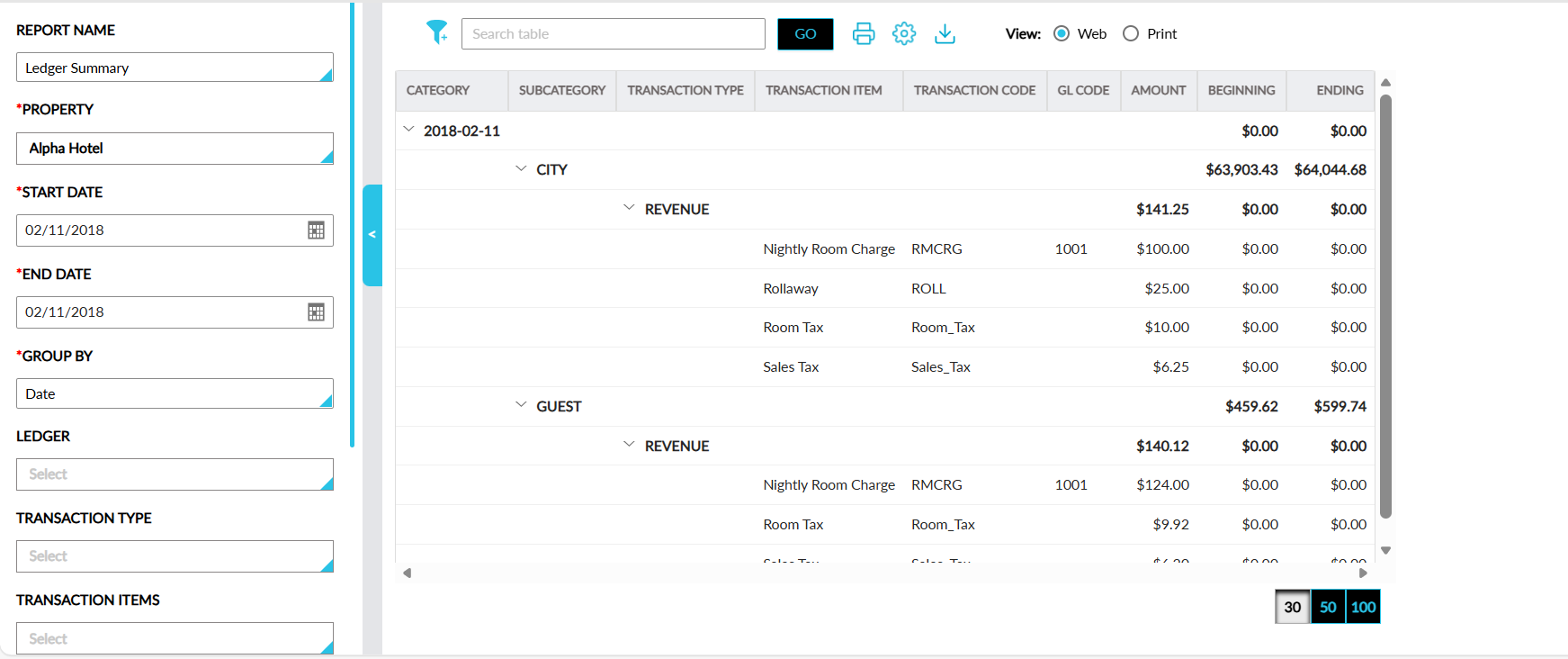
Report Fields
This report displays the following fields:
|
Field |
Description |
|---|---|
|
Category |
This column displays the group by option selected along with an accordion. When the accordion is collapsed, only the beginning and ending balance will be displayed. When the accordion is expanded, values are displayed for the remaining columns. |
|
Subcategory |
Displays the ledger name with an accordion. When the accordion is collapsed, only the beginning and ending balance for the ledger will be displayed. When the accordion is expanded, values are displayed for the remaining columns. This column can be filtered. |
|
Transaction Type |
The transaction type is displayed with an accordion. When the accordion is collapsed, only the amount, beginning and ending balance for the transaction type will be displayed. When the accordion is expanded, values are displayed for the remaining columns. This column can be filtered. |
|
Transaction Item |
The transaction items posted for the respective transaction type. |
|
Transaction Code |
The transaction item code. |
|
GL Code |
The GL code of the item. This column can be filtered. |
|
Amount |
The amount posted for the item. |
|
Beginning |
The beginning balance of the ledger. |
|
Ending |
The ending balance of the ledger. |